You snap a quick photo of a document, upload it for conversion, and the result comes back full of garbled nonsense. Frustrating, right? Nine times out of ten, the culprit is either blur or skew in the original image. This guide explains exactly why these two issues cause such disproportionate damage to OCR results, and walks through practical fixes you can apply before uploading anything.
How Blur Prevents OCR From Recognizing Individual Characters
OCR algorithms depend on crisp, well-defined edges to distinguish where one character ends and another begins. Blur smears these boundaries together, sometimes merging two separate letters into a single, unrecognizable shape.
This is precisely why blurry text often produces nonsensical output rather than simply "close" guesses. The software isn't seeing a slightly fuzzy "e" — it's seeing a shape that doesn't clearly match any known character at all.
Why a Tilted Page Changes the Way OCR Reads Text
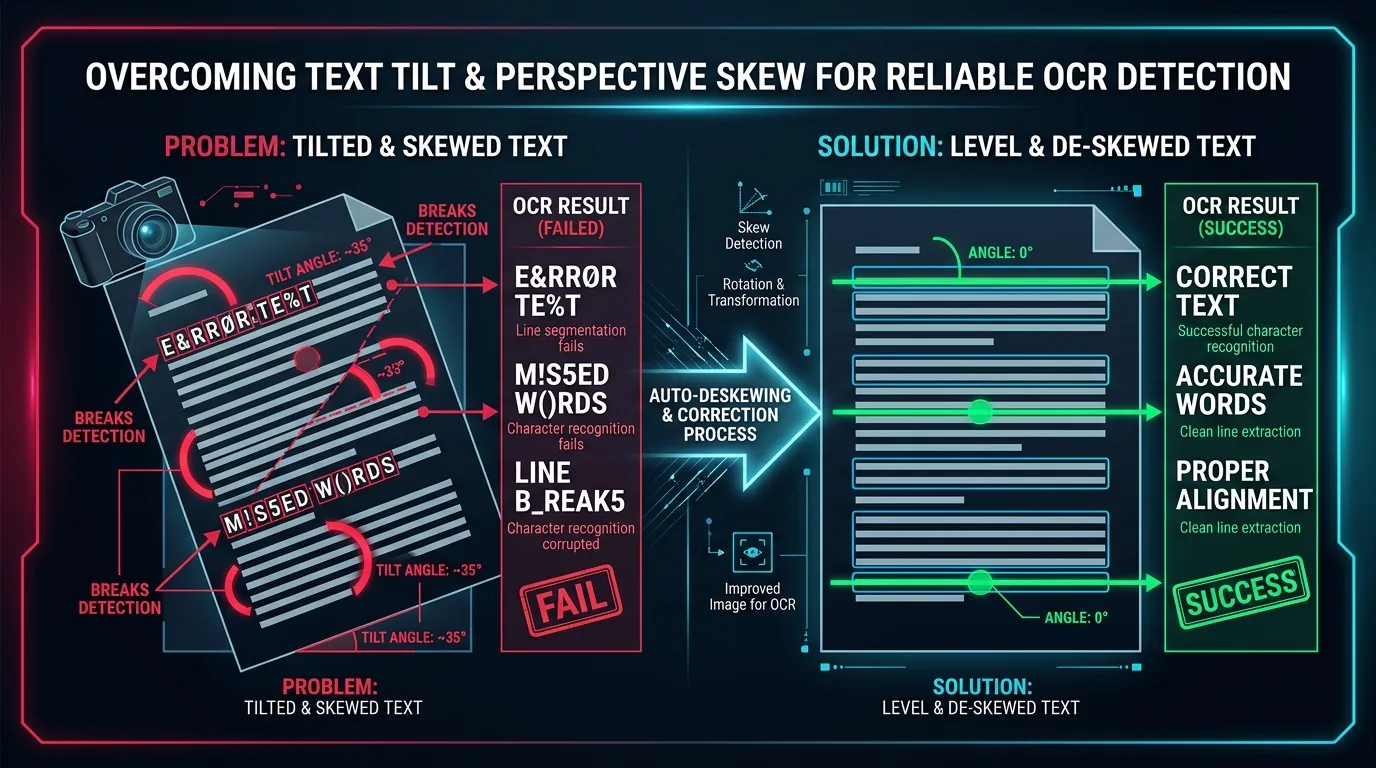
Skewed photo OCR problems arise because the software expects text to run in predictable horizontal lines. A tilted page forces every line to zigzag slightly relative to the image's actual horizontal axis, confusing the line-detection process.
Even a five-degree tilt, barely noticeable to the naked eye, can meaningfully reduce accuracy, since the recognition algorithm has to work much harder to correctly group characters into coherent words and lines.
How Perspective Distortion Affects Document Structure
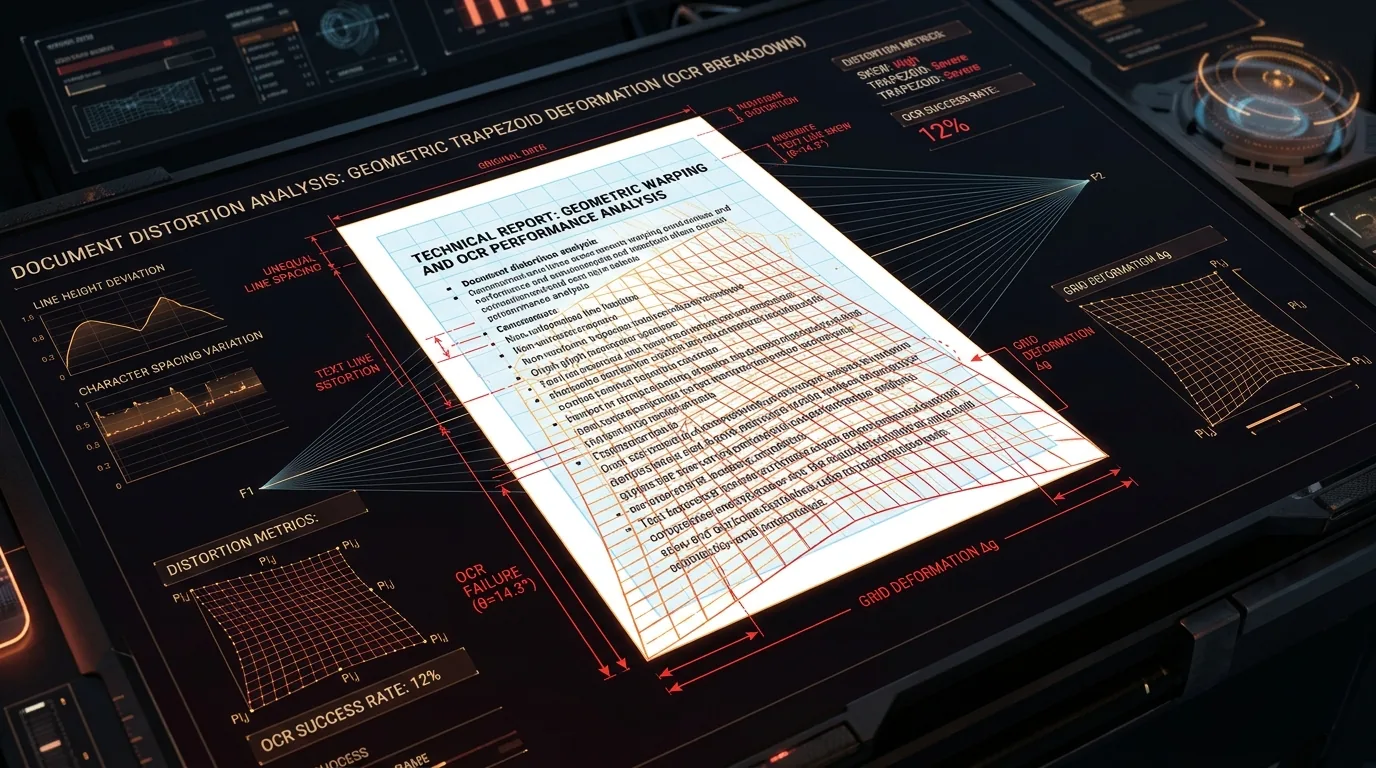
Beyond simple tilting, photographing a document at an angle creates perspective distortion, where the far edge of the page appears smaller than the near edge. This warps the entire document's proportions unevenly across the image.
| Distortion Type | Effect on Recognition |
|---|---|
| Simple tilt | Zigzagging text lines |
| Perspective skew | Uneven character sizing |
| Combined tilt and skew | Severe, compounding errors |
Why Shadows and Uneven Lighting Create False Characters
A shadow falling across part of your document can create dark shapes that OCR software occasionally misinterprets as additional characters or punctuation marks that don't actually exist in the original text.
This is particularly problematic near shadow boundaries, where the transition from dark to light can resemble the edge of a letter, adding phantom marks that corrupt otherwise accurate surrounding text.
How JPEG Compression Can Damage Small Text
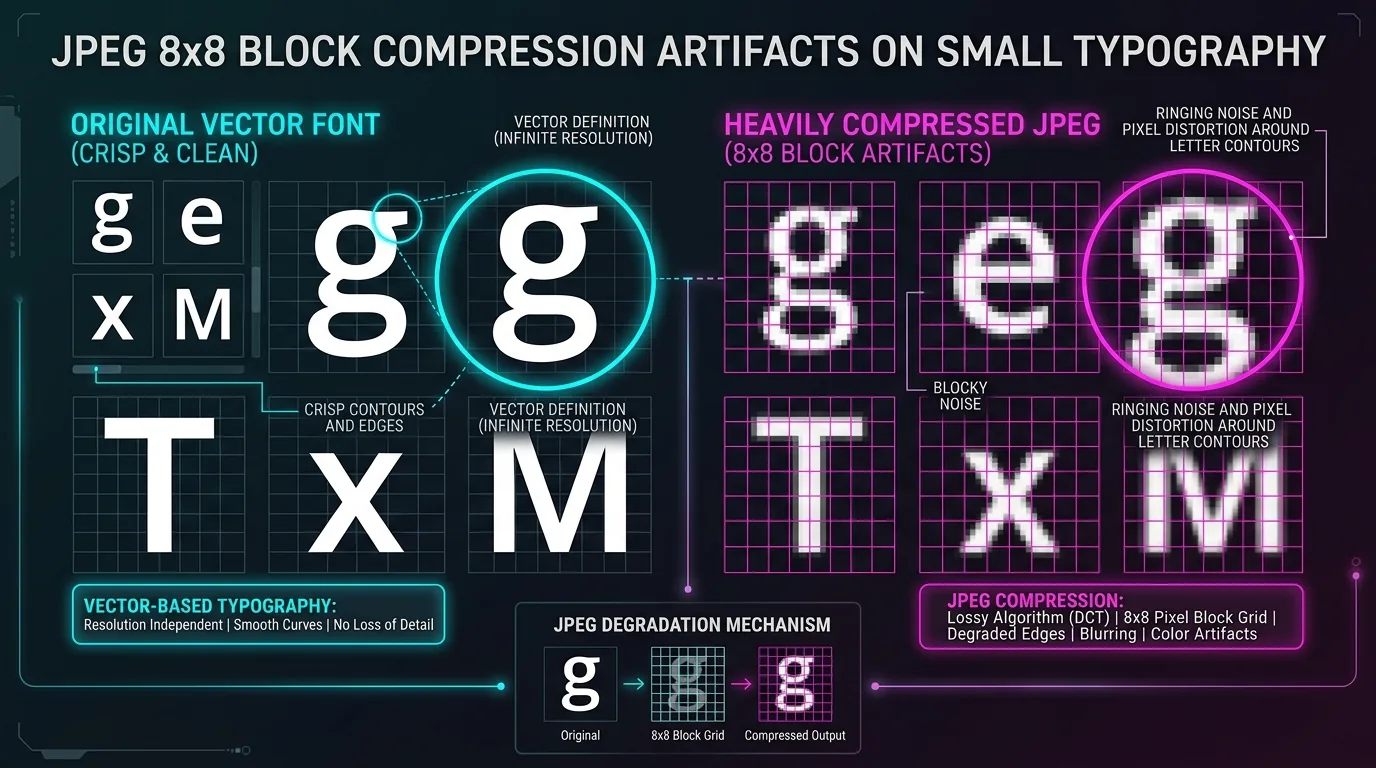
JPEG compression works by discarding some visual information to reduce file size, and this process disproportionately affects fine details like small text. Heavily compressed images can develop visible artifacts right around individual letters.
This becomes especially noticeable with documents containing small font sizes, like footnotes or dense paragraphs, where the already-limited pixel detail per character gets further degraded by aggressive compression settings.
How to Crop Away Unnecessary Background Areas
Background clutter surrounding your document can confuse the software's initial layout detection, sometimes causing it to misidentify where the actual content boundaries begin and end.
Crop your image tightly around the document's edges before running any conversion. This simple step reduces the visual noise the software needs to process and generally improves overall accuracy across the entire page.
When Deskewing Can Improve Recognition Without Rewriting the Image
Deskewing tools automatically detect and correct tilt within an image, straightening text lines without meaningfully altering the actual content itself. Many OCR platforms include this as a built-in preprocessing step.
For photos with only mild tilt, automatic deskewing often resolves the issue completely on its own. Severely distorted images, though, may still need manual correction using dedicated photo editing software beforehand.
How Contrast and Grayscale Processing Can Help
Converting your image to grayscale and boosting contrast makes text stand out more clearly against its background, effectively compensating somewhat for minor blur or lighting inconsistencies present in the original photo.
This preprocessing step works particularly well for documents with faint or light-colored text, where the natural contrast between ink and paper wasn't strong enough for reliable recognition in the unmodified original image.
How to Create a Cleaner JPG Before Running OCR
Combine several fixes together for the best results: crop tightly, correct any tilt, boost contrast, and verify sharpness before finalizing your image. Each individual fix contributes incrementally to overall accuracy.
Free photo editing apps available on most smartphones include all these adjustment tools built in, meaning you don't need specialized software to meaningfully improve your document photo before conversion.
Conclusion: Preparing Better Images for More Reliable JPG-to-Word Results
Blur and skew are two of the most common, yet most fixable, causes of poor JPG to Word conversion results. A few minutes spent cropping, straightening, and adjusting contrast before uploading can transform a frustrating, error-filled conversion into a clean, mostly accurate one.