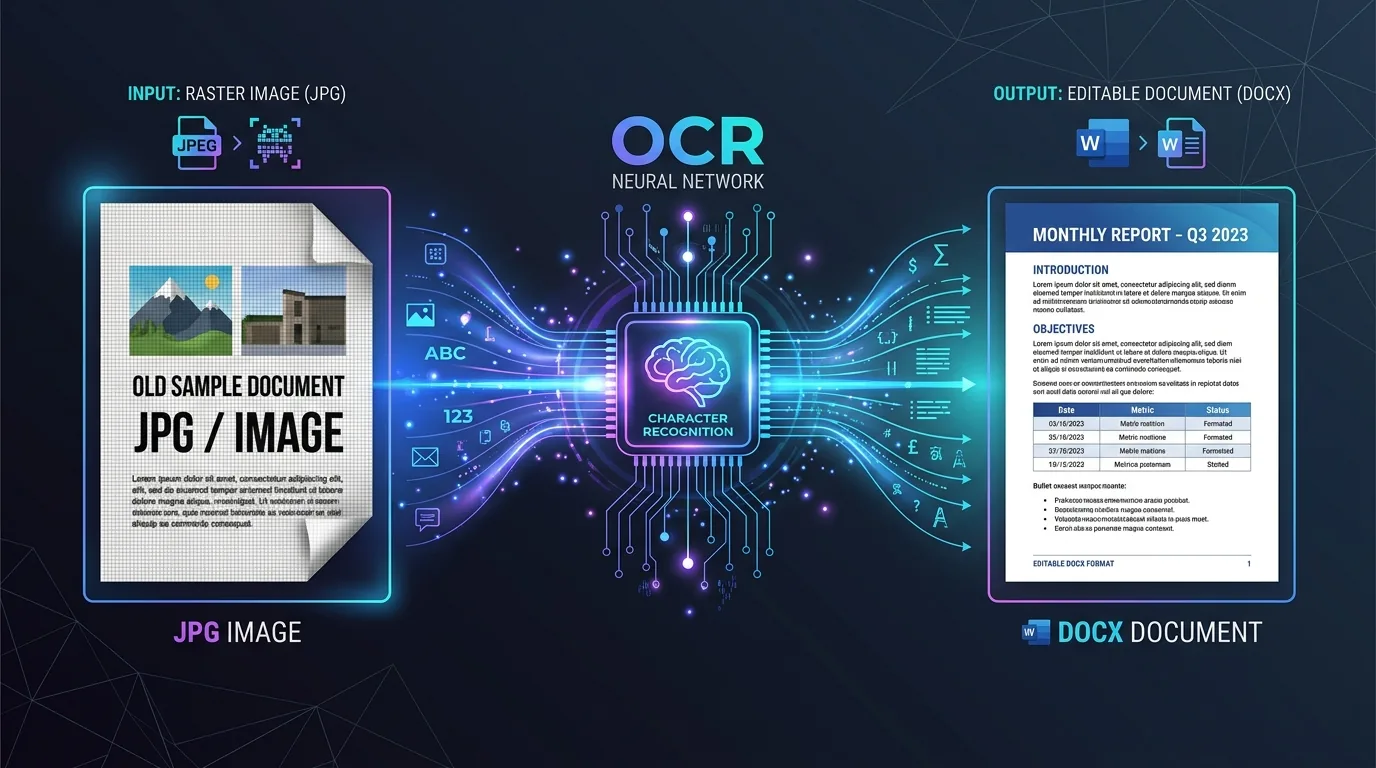
You've got a photo of a document sitting on your phone, and you need it as an editable Word file. Sounds simple, right? Behind that single click, though, a surprisingly complex process unfolds. Understanding JPG to Word conversion helps you set realistic expectations and avoid frustration when the output doesn't look quite like the original. This guide walks through exactly what happens during conversion, why some results shine while others disappoint, and what limitations you should know about before you start.
What Happens to a JPG When It Is Turned Into an Editable Document?
A JPG is just a grid of pixels. It has no concept of "letters" or "words" built in — to a computer, it's simply colors arranged in a pattern. Converting it into something like a Word file means teaching software to recognize shapes as characters.
This transformation relies on optical character recognition, commonly shortened to OCR. The software scans the image, identifies patterns that resemble letters, and reconstructs them as actual, selectable text. Once that text exists, it gets placed into a DOCX file structure that Word can open and edit.
How OCR Extracts Text From a JPG Image
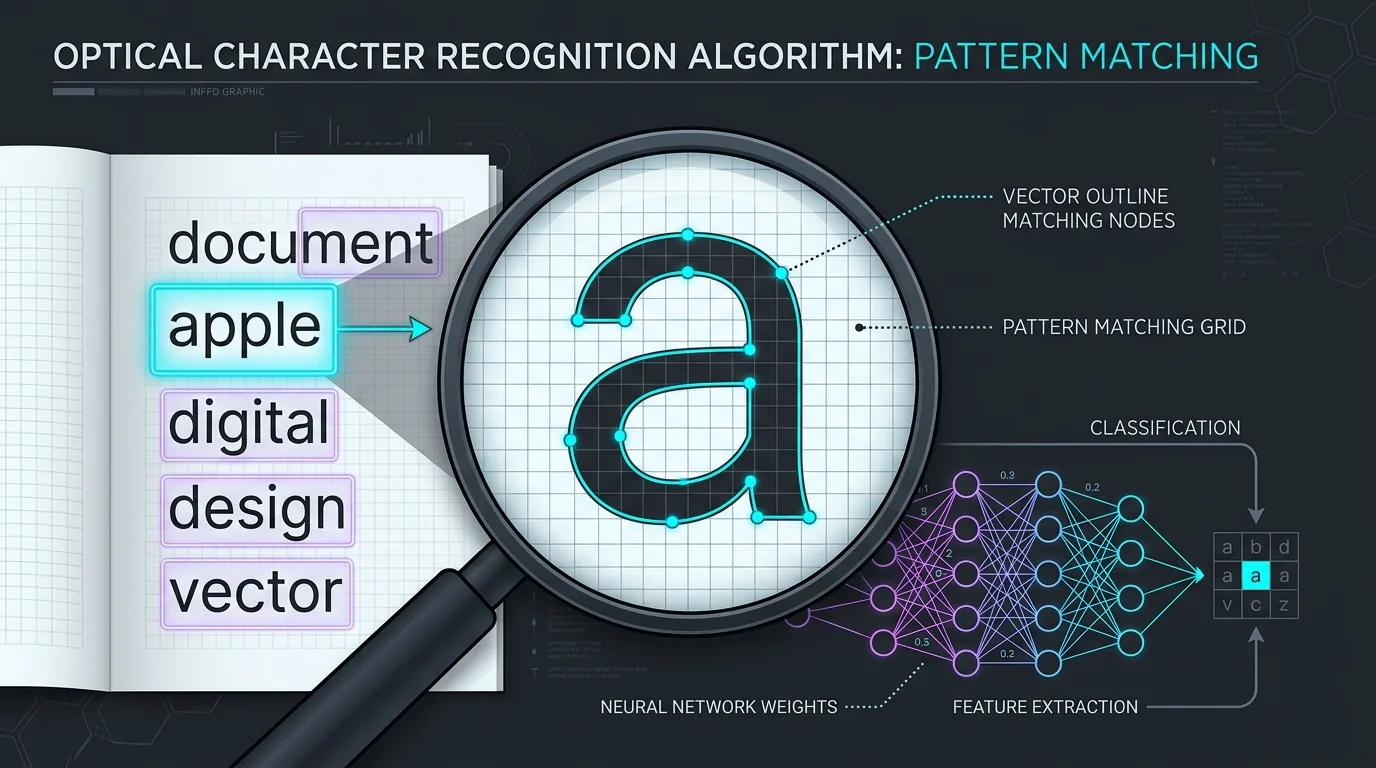
OCR engines work by breaking an image into small regions, then comparing each shape against a massive library of known letterforms. When a shape matches "a" closely enough, the software commits to that guess and moves on.
This process happens incredibly fast, often analyzing thousands of characters per second. But speed comes with tradeoffs. The engine doesn't truly "read" the way a human does — it pattern-matches, which means unusual fonts or unclear characters can throw off OCR accuracy significantly.
Why the Converted Word File Is Not a Perfect Copy of the Image
Here's the honest truth: JPG to Word conversion rarely produces a flawless replica. The software rebuilds structure from scratch, guessing at spacing, alignment, and formatting choices that existed in the original.
Think of it like translating a spoken conversation into written notes. You capture the meaning, but the exact rhythm and tone often shift along the way. Similarly, your converted document might carry the same words but organize them slightly differently than the source image.
What Happens to Fonts, Spacing, Tables, and Line Breaks?
Fonts rarely survive the trip intact. Most OCR tools substitute a standard font like Calibri or Times New Roman, since replicating the exact original typeface isn't part of their core function.
Spacing and line breaks fare a bit better but still shift occasionally. Tables present a particular challenge, since the software must infer where columns and rows actually belong. A simple two-column table often converts cleanly, but complex, nested tables frequently need manual cleanup afterward.
How Images and Graphics Are Handled During JPG-to-Word Conversion
Photos, logos, and diagrams embedded within the original document generally get preserved as standalone image objects rather than converted into text. The software recognizes these regions aren't character-based and leaves them alone.
That said, placement can drift. An image that sat neatly beside a paragraph in the original might land above or below that same paragraph in the converted file, simply because the software's layout reconstruction isn't perfect.
Why Handwritten Text Can Be Difficult for OCR to Recognize
Printed text follows fairly consistent shapes. Handwriting doesn't. Every person forms letters slightly differently, and that variability makes handwritten text dramatically harder for standard OCR engines to interpret correctly.
Cursive writing poses an even bigger challenge, since letters often connect fluidly rather than standing as distinct shapes. Specialized handwriting-recognition models exist, but even the best ones lag well behind printed-text accuracy rates.
How Image Resolution Affects the Extracted Word Content
Resolution matters enormously here. A crisp, high-resolution JPG gives the OCR engine clear edges to analyze, while a low-resolution image blurs those same edges into ambiguous shapes.
| Resolution Quality | Typical OCR Outcome |
|---|---|
| High (300+ DPI) | Clean, accurate text extraction |
| Medium (150–300 DPI) | Mostly accurate, occasional errors |
| Low (under 150 DPI) | Frequent misreads, garbled words |
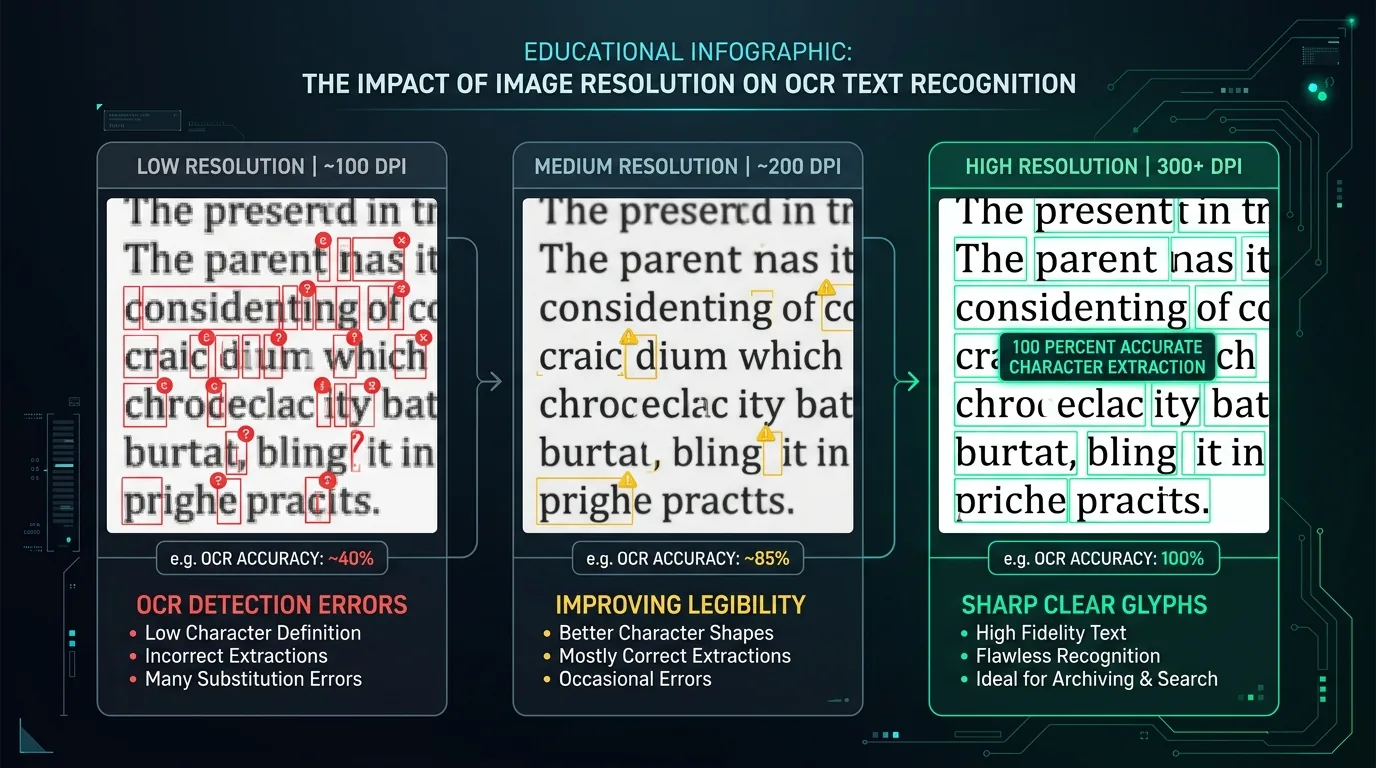
Aim for the highest resolution your camera or scanner allows before starting any conversion.
When the Result Needs Manual Editing After Conversion
Even a strong conversion usually needs a quick review. Common issues include misplaced paragraph breaks, minor spelling errors from misread characters, and formatting inconsistencies that weren't in the original.
Budget a few minutes for proofreading, especially for documents where accuracy truly matters, like contracts or academic papers. Treating the converted file as a solid first draft, rather than a finished product, sets the right expectations.
How to Check an OCR Document Against the Original JPG
Open both files side by side. Scan through paragraph by paragraph, checking that numbers, names, and technical terms transferred correctly, since these are the details OCR engines misread most often.
Pay special attention to similar-looking characters. The letter "l" and the number "1" get confused constantly, along with "O" and "0." A careful pass through these trouble spots catches most remaining errors quickly.
Conclusion: Understanding What JPG-to-Word Conversion Can and Cannot Do
JPG to Word conversion is genuinely useful, but it's not magic. The software does an impressive job turning pixels into editable text, yet formatting quirks, font substitutions, and occasional misreads are part of the deal. Start with the clearest image possible, expect some manual cleanup, and you'll get results that save real time compared to retyping everything by hand.