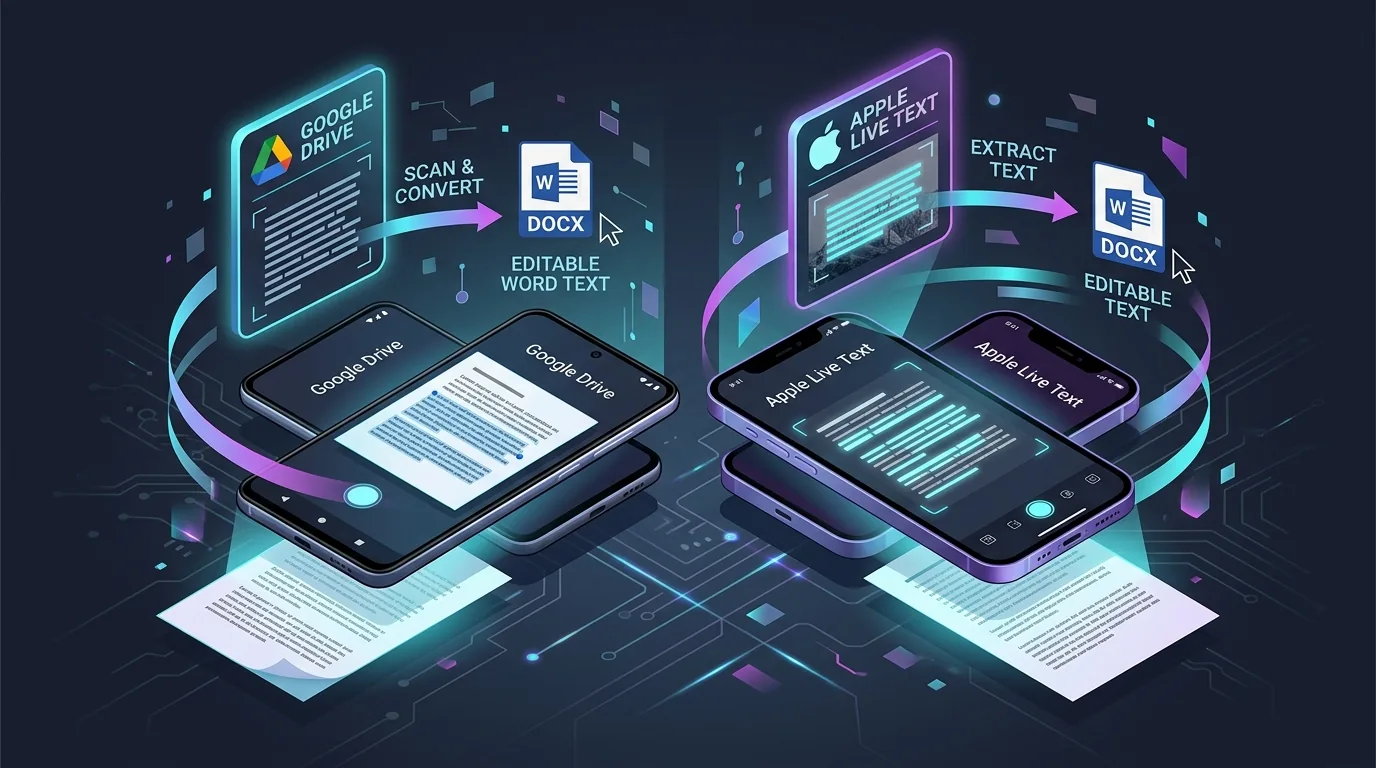
Your phone is probably capable of far more document conversion than you realize. Both Android and iPhone devices now include surprisingly capable tools for turning a photographed document into editable Word text, often without installing anything extra. This guide walks through exactly how to accomplish JPG to Word conversion on mobile, covering built-in options, common issues, and best practices for keeping your documents secure along the way.
What You Need to Convert a JPG Into Editable Word Text on Mobile
At minimum, you need your photographed document saved as a JPG file, plus either a built-in scanning app or a third-party OCR application installed on your phone. Most modern smartphones already include at least one option pre-installed.
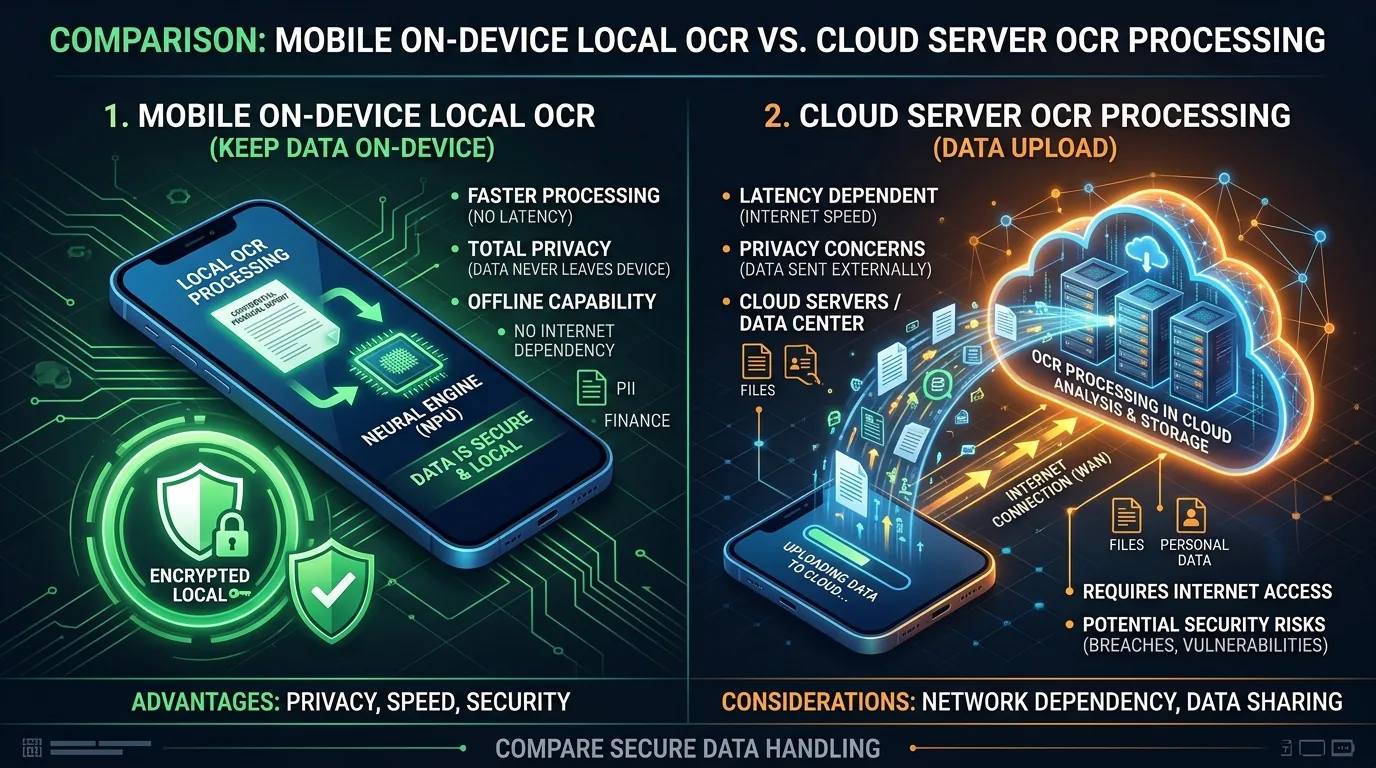
An internet connection helps too, since many mobile OCR tools process images through cloud-based servers rather than performing recognition entirely on your device, though some offline options do exist for privacy-conscious users.
How Android Handles JPG-to-Word Conversion
Android devices benefit from tight integration with Google's ecosystem. Google Drive's mobile app includes a document scanning feature with built-in OCR, letting you photograph a page and receive searchable, editable text almost immediately.
Many Android manufacturers also bundle their own scanning apps, like Samsung Notes' document scan feature, which similarly extracts text automatically and can export results in formats compatible with Word.
How iPhone Handles Image-to-Word Workflows
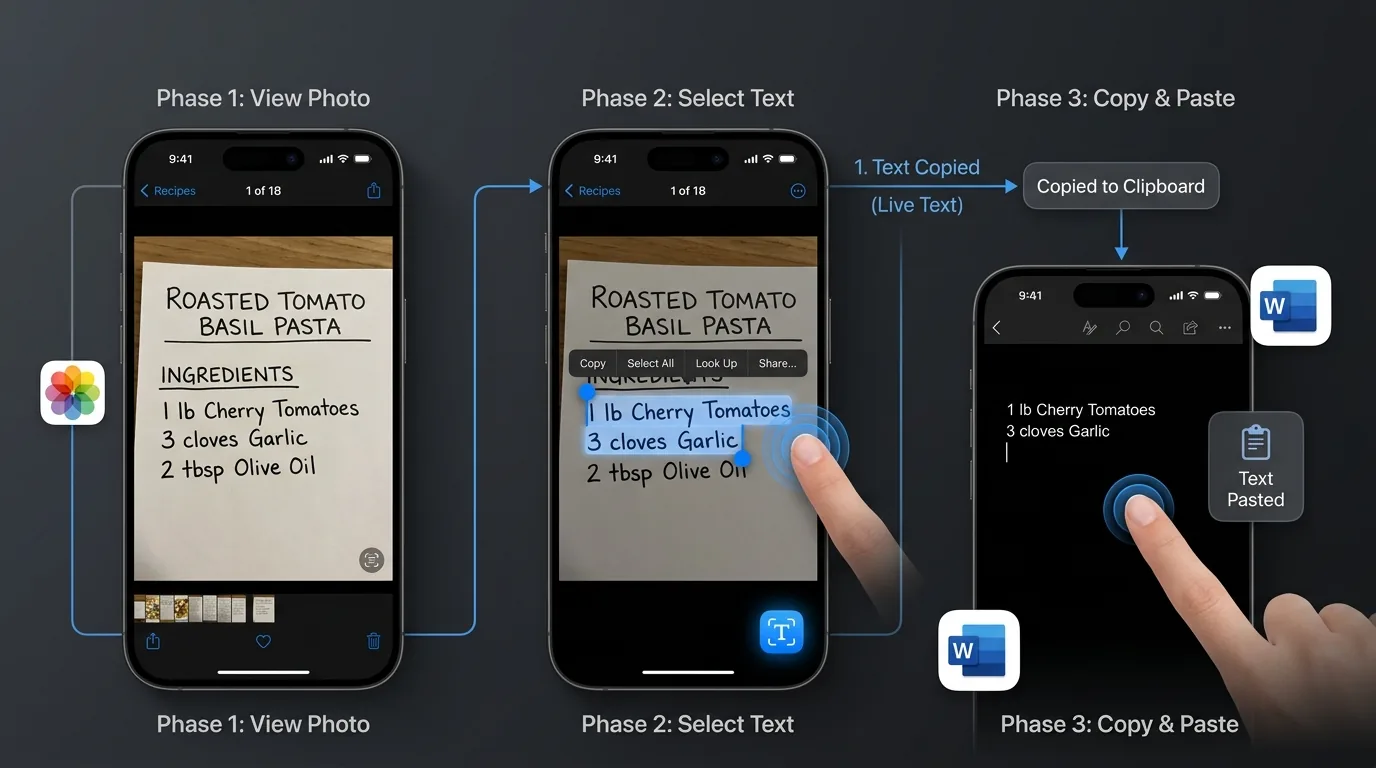
iPhone users have access to the Notes app's built-in document scanner, along with Live Text, a feature that lets you select and copy text directly from any photo, including ones already saved in your camera roll.
This Live Text functionality works remarkably well for quick extractions. Simply open a photo, tap the text-selection icon, and copy the recognized text directly into any app, including Word, without needing a separate converter entirely.
How to Use Mobile OCR for Printed Documents
Printed text generally converts more reliably than handwriting on any platform. Position your phone directly above the document, ensure good lighting, and let your chosen scanning app capture the image before running its OCR process.
Most scanning apps also include automatic edge detection, which identifies the document's boundaries and crops out background clutter automatically, streamlining the whole mobile document scanner workflow considerably.
How to Import JPG Photos From Your Phone Gallery
If you already have a JPG saved in your photo gallery rather than capturing a fresh image, most OCR apps include an import option, letting you select existing photos rather than requiring a live camera capture every time.
This is particularly useful for documents someone else photographed and sent to you, since you can run OCR on an image without needing physical access to the original paper document at all.
How to Convert a Camera Photo Into an Editable Word File
After capturing or importing your image, most apps offer a direct export option to Word format, or alternatively to plain text that you can paste into a new Word document manually afterward.
| Platform | Built-In Option | Export Format |
|---|---|---|
| Android | Google Drive scan | DOCX, PDF, TXT |
| iPhone | Live Text / Notes scan | Text copy, PDF |
What to Do When the OCR Result Has Formatting Errors
Mobile OCR tools sometimes struggle more with complex formatting than their desktop counterparts, given the more limited processing capabilities and simplified interfaces typical of phone applications.
Review the extracted text carefully once it lands in Word, checking for the same common issues discussed elsewhere: misread characters, dropped punctuation, and formatting inconsistencies that need manual correction before finalizing the document.
How to Save, Edit, and Share the Converted Word Document
Once your text lands in Word, either through direct export or manual copy-paste, save the file to cloud storage like OneDrive or Google Drive for easy access across your other devices later.
From there, standard Word editing and sharing options apply normally. You can email the document, share a cloud link, or continue editing directly within the mobile Word app itself.
How to Protect Sensitive Documents During Mobile Conversion
Cloud-based OCR tools transmit your image to remote servers for processing, which raises legitimate privacy considerations for sensitive documents like financial statements or personal identification.
For genuinely sensitive documents, look for OCR apps specifically advertising on-device, offline processing, avoiding cloud transmission entirely. Always review an app's privacy policy before uploading anything containing confidential personal information.
Conclusion: Converting JPG Images to Word From Your Phone
Both Android and iPhone offer genuinely capable, often free tools for turning a document photo into editable Word text. Whether you use Google Drive's scanner, Apple's Live Text, or a dedicated app, the same core principles apply: good lighting, steady framing, and careful proofreading afterward for the most reliable results.