You convert a JPG, open the resulting Word file, and something feels off. Maybe the columns shifted. Maybe the heading lost its bold styling. This happens constantly, and it's not a bug — it's simply how JPG to Word formatting reconstruction works. This article explains exactly why layout changes during conversion, which elements are most vulnerable, and how you can repair the damage afterward without starting from scratch.
Why Text Can Move When a JPG Becomes a Word Document
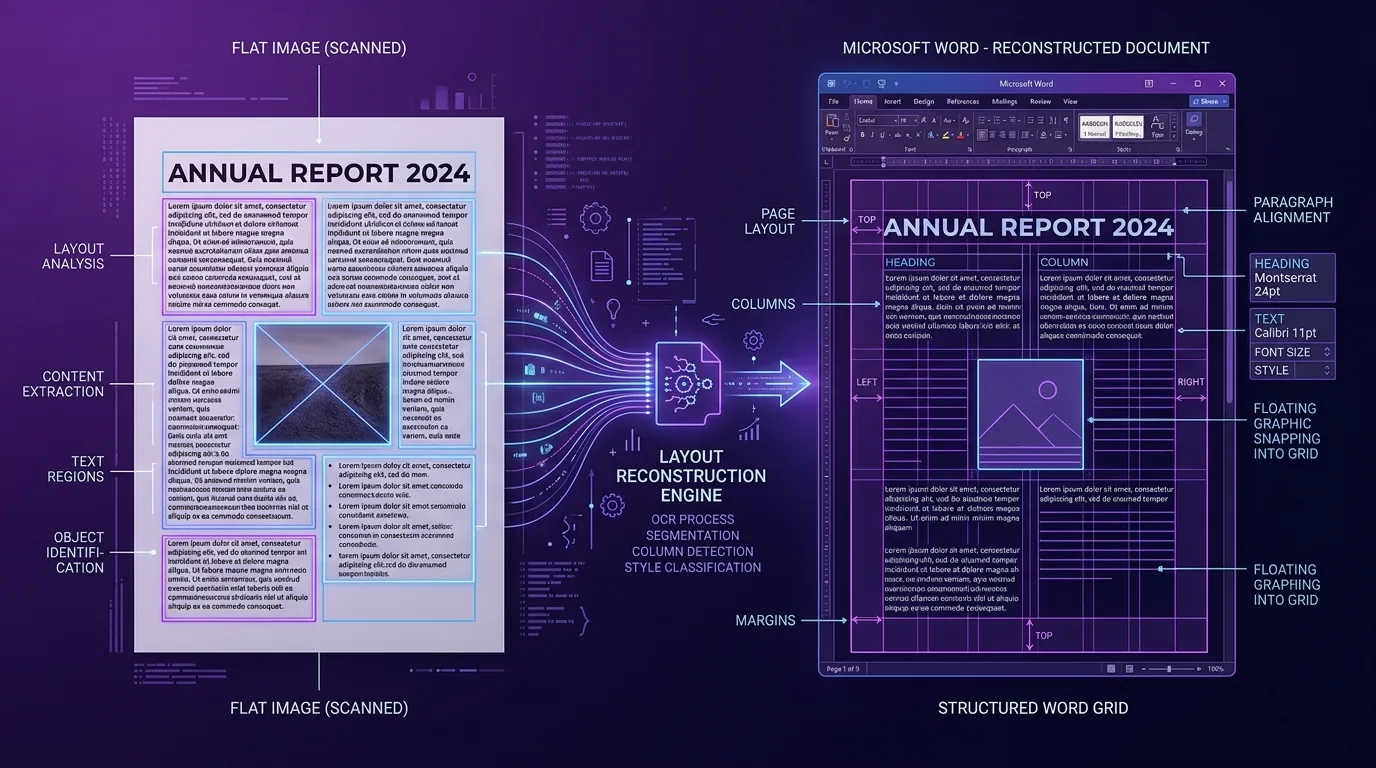
A JPG has no internal concept of paragraphs or margins. It's just pixels. When OCR software converts that image, it has to guess where text blocks begin and end, essentially reconstructing structure that never technically existed in a machine-readable form.
This guessing process occasionally misfires. A paragraph that wrapped naturally around an image in the original might end up positioned entirely differently once the software rebuilds it inside a standard Word page layout.
How OCR Reconstructs Layout From a Flat Image
The reconstruction process analyzes spacing patterns, indentation, and grouping of characters to infer structure. Wide gaps between text blocks typically signal a new paragraph or column boundary to the algorithm.
This works reasonably well for simple, single-column documents. But once you introduce multiple text blocks, sidebars, or overlapping design elements, the software's layout analysis has to make far more assumptions, increasing the chance of errors along the way.
What Happens to Different Fonts During Conversion?
Original fonts almost never carry over exactly. OCR engines typically default to a standard system font since matching the precise original typeface isn't part of their core recognition task.
Bold and italic styling sometimes survive if the contrast between styled and regular text is strong enough for the software to detect. Faint or subtle styling differences, though, often get flattened into plain, unstyled text during the conversion process.
Why Tables and Columns Often Need Extra Adjustment
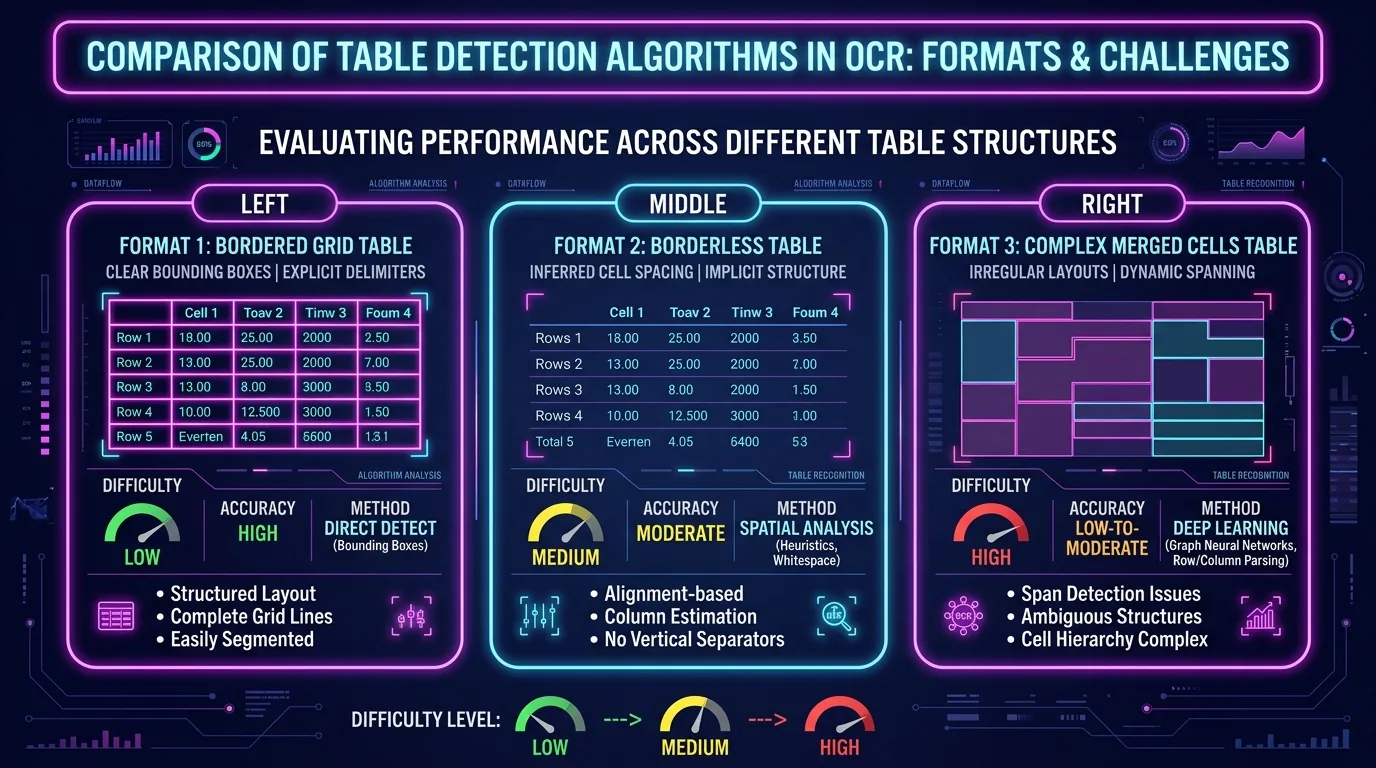
Tables are notoriously tricky. The software must correctly identify where cell boundaries exist, which is straightforward for documents with visible grid lines but much harder when borders are missing or inconsistent.
| Table Type | Conversion Difficulty |
|---|---|
| Bordered grid table | Low difficulty |
| Borderless table | Moderate difficulty |
| Merged or nested cells | High difficulty |
Multi-column layouts, like newsletters, face a similar issue, since the software must decide which column a line of text belongs to.
How Line Spacing and Margins Can Change
Line spacing in the converted document often defaults to a standard value, rather than exactly matching the original image. Single-spaced text might come out looking slightly looser or tighter than intended.
Margins shift too, largely because the software maps content onto a standard page template rather than preserving the exact pixel dimensions of your original photo or scan. This is completely normal and usually easy to adjust manually afterward.
Why Headers, Footers, and Page Numbers May Be Misread
Headers and footers sit in unusual positions compared to body text, which sometimes confuses the recognition algorithm. A page number in small font at the bottom corner might get skipped entirely or merged into the main paragraph text.
Repeating headers across multiple pages can also create duplicate or oddly placed text blocks in the final document, since the software processes each page somewhat independently during conversion.
How Images and Captions Affect the Converted Layout
An image embedded near text usually converts as a standalone object, but its exact position relative to surrounding paragraphs can shift. Captions directly below or beside an image sometimes detach and float elsewhere in the reconstructed page.
This happens because the software separates image regions from text regions early in its processing pipeline, then reassembles them based on approximate, rather than exact, positional data.
Why Low-Quality JPGs Create More Formatting Problems
A blurry or low-resolution image gives the OCR engine less reliable data to work with, which compounds formatting issues on top of basic text-recognition errors. Fuzzy boundaries between text blocks become genuinely ambiguous.
Higher image resolution consistently produces cleaner formatting outcomes, since sharp, well-defined edges make it far easier for the software to correctly identify where one structural element ends and another begins.
How to Repair a Word Document After OCR Conversion
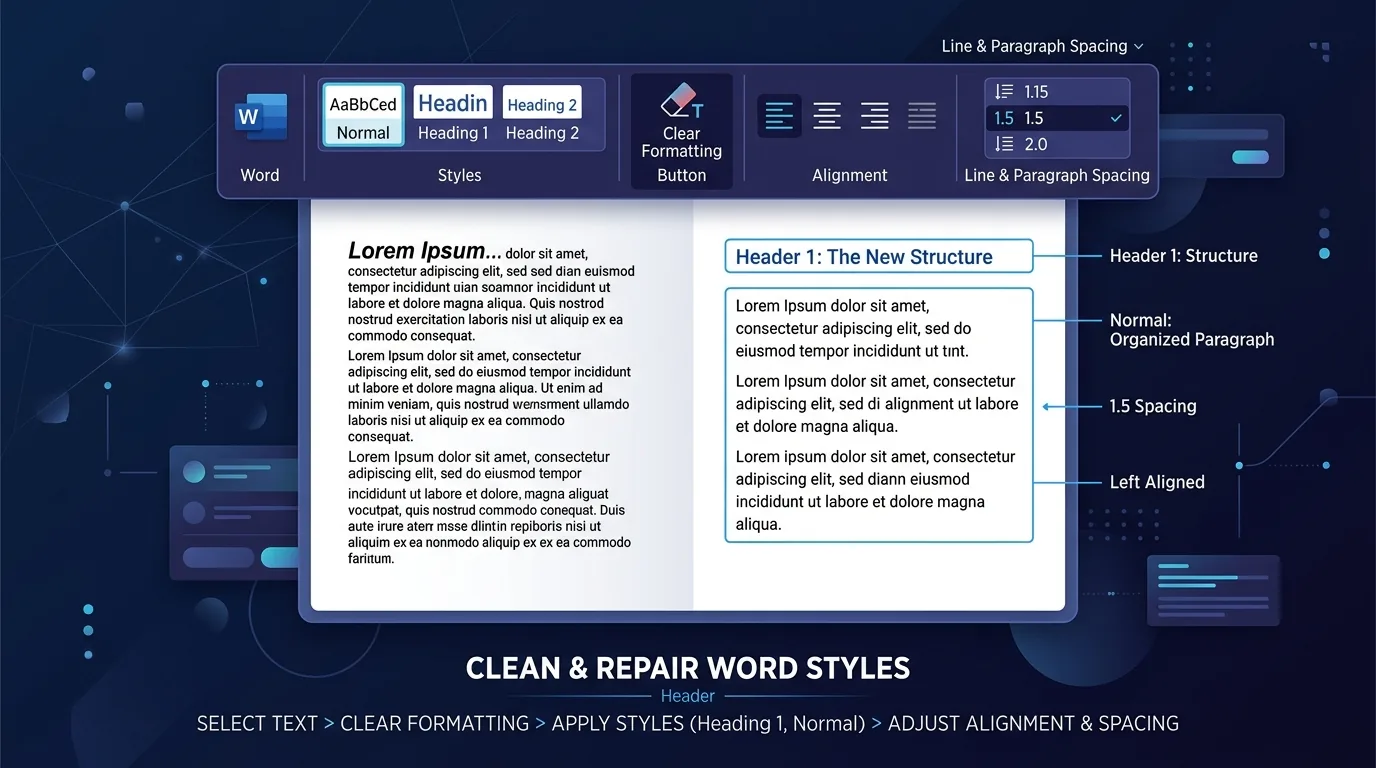
Start with the big-picture layout before fixing small details. Check that paragraphs, headings, and tables landed in roughly the right places, then move on to font consistency and spacing adjustments.
Using Word's built-in formatting tools, like "Clear Formatting" followed by reapplying your preferred style, often fixes inconsistencies faster than manually adjusting each line. This approach works especially well for text-heavy documents with minimal complex layout.
Conclusion: Why Formatting Reconstruction Is Different From Copying a JPG
JPG to Word formatting never works like a perfect photocopy. The software rebuilds structure from limited visual clues, which naturally introduces some drift from the original design. Understanding this upfront means you'll spend less time frustrated and more time efficiently cleaning up the small formatting details that genuinely need attention.