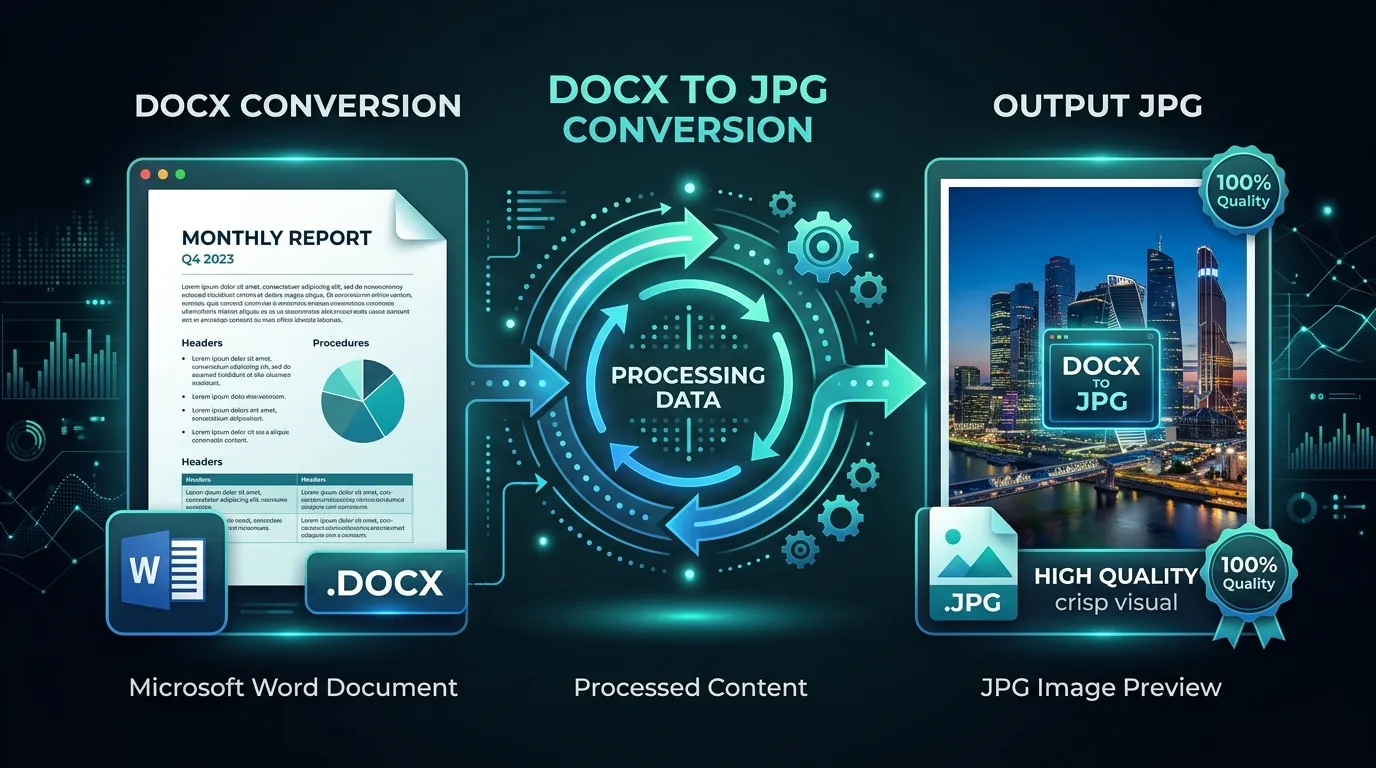
Sometimes you need the opposite of what most people ask for. Instead of turning an image into text, you need to turn a Word document into a JPG image, maybe for a social media post, a website graphic, or a quick preview you can share without worrying about formatting compatibility. This guide covers several practical methods for getting there, along with tips for keeping the output sharp and readable.
Why Convert a Word Document Into a JPG Image?
JPG files display consistently everywhere, regardless of whether the viewer has Word installed. Sharing a document as an image guarantees your recipient sees exactly what you intended, without any risk of fonts rendering differently on their device.
This matters especially for flyers, certificates, or single-page announcements where visual consistency counts more than editability. Once something becomes a JPG, nobody can accidentally edit or reformat your carefully designed layout.
How to Prepare a Word Document Before Converting It
Before converting anything, review your document for spacing issues, typos, or awkward page breaks. Once it becomes a JPG, making corrections means starting the entire process over again from the original Word file.
Also confirm your page size and orientation match what you actually want in the final image. A document formatted for standard Letter size will produce a differently proportioned JPG than one set up for A4.
How to Save a Word Page as a JPG Image
The most direct route on Windows involves saving your document as a PDF first, then opening that PDF and exporting individual pages as JPG files using either built-in tools or free online converters.
On a Mac, a similar approach works well. Export your Word document to PDF through the print dialog, then use Preview's built-in export function to save each page as a separate, high-quality JPG image.
How to Convert Multiple Word Pages Into Separate JPG Files
Multi-page documents require converting each page individually, since a JPG format inherently represents a single flat image rather than a paginated document.
| Step | Action |
|---|---|
| 1 | Export Word document to PDF |
| 2 | Open PDF in a viewer or converter tool |
| 3 | Export each page as a separate JPG |
| 4 | Rename files sequentially for organization |
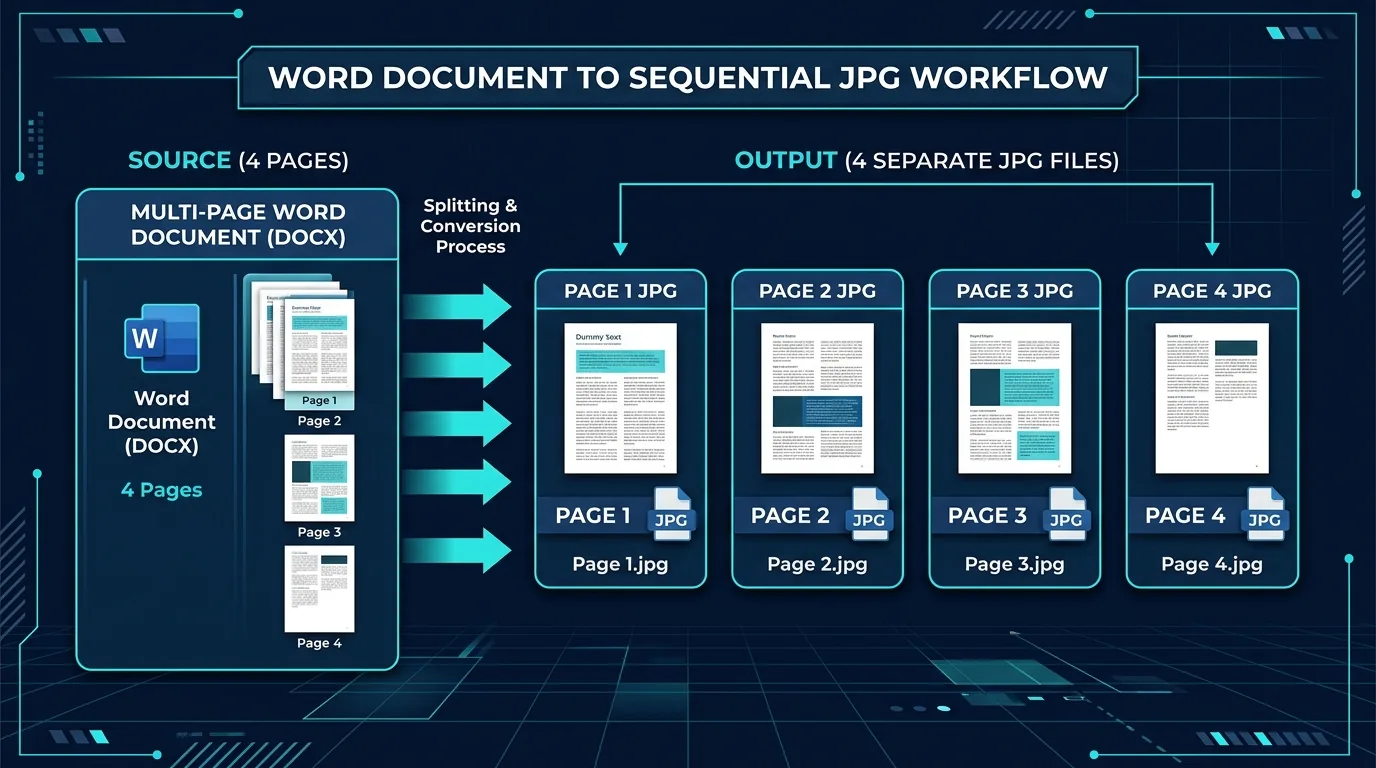
Batch conversion tools can automate this for lengthy documents, saving considerable time.
What Happens to Text and Images During Word-to-JPG Conversion?
Everything visible on the page, including text, embedded images, and graphics, gets flattened into a single static image. There's no more distinction between text and pictures once this conversion finishes.
This means the resulting JPG is no longer editable in any meaningful sense. Anyone receiving it sees exactly your intended layout, but they cannot select, copy, or modify the text without separately running OCR on the image again.
How Page Size and Resolution Affect the Output Image
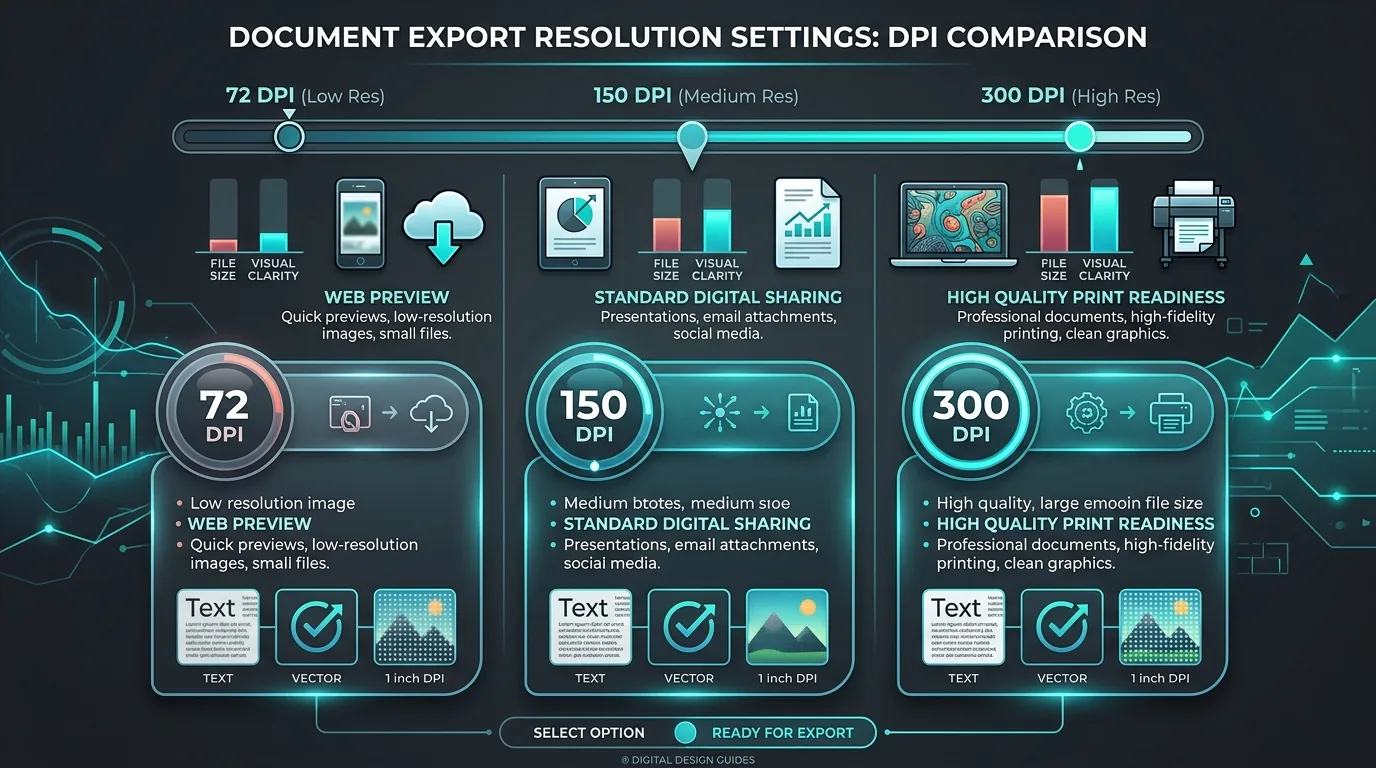
Larger page dimensions and higher resolution settings produce sharper, more detailed JPG files, though at the cost of larger file sizes. A standard document page exported at 150 DPI typically balances clarity with reasonable file size well.
For documents destined for print, aim higher, around 300 DPI, to maintain crisp text alignment and readability. Web-only sharing can generally get away with lower resolution settings without much visible quality loss.
How to Choose JPG Quality for Documents
Most export tools offer a quality slider or percentage setting. Higher settings preserve fine text detail but create larger files, while lower settings compress more aggressively, sometimes introducing visible blur around small text.
For text-heavy documents specifically, err toward higher quality settings. Compression artifacts tend to be far more noticeable and distracting around small font sizes than they are in photographs or simple graphics.
How to Convert Word to JPG Without Installing Extra Software
Many free online tools accept a Word file directly, handling the PDF conversion and image export automatically behind the scenes. This route works well for occasional, one-off conversions without cluttering your computer with new programs.
Google Docs offers another built-in option. Upload your Word file, open it, then use the download menu to export directly as a PDF, followed by a quick conversion to JPG using any basic online tool.
What to Do When a Word-to-JPG Export Looks Blurry
Blurriness usually traces back to low resolution settings during export. Revisit your conversion tool's settings and increase the DPI or quality percentage before exporting again.
If the blur persists even at high settings, check your original Word document for any embedded low-resolution images, since those source files can't magically become sharper just because you're exporting at a higher overall resolution.
Conclusion: Choosing the Right Method for Word-to-JPG Conversion
Converting a Word document to JPG comes down to picking the right tool for your situation, whether that's a built-in export function, an online converter, or a simple print-to-PDF workflow. Pay attention to resolution and quality settings, and you'll end up with a sharp, shareable image that faithfully represents your original document.