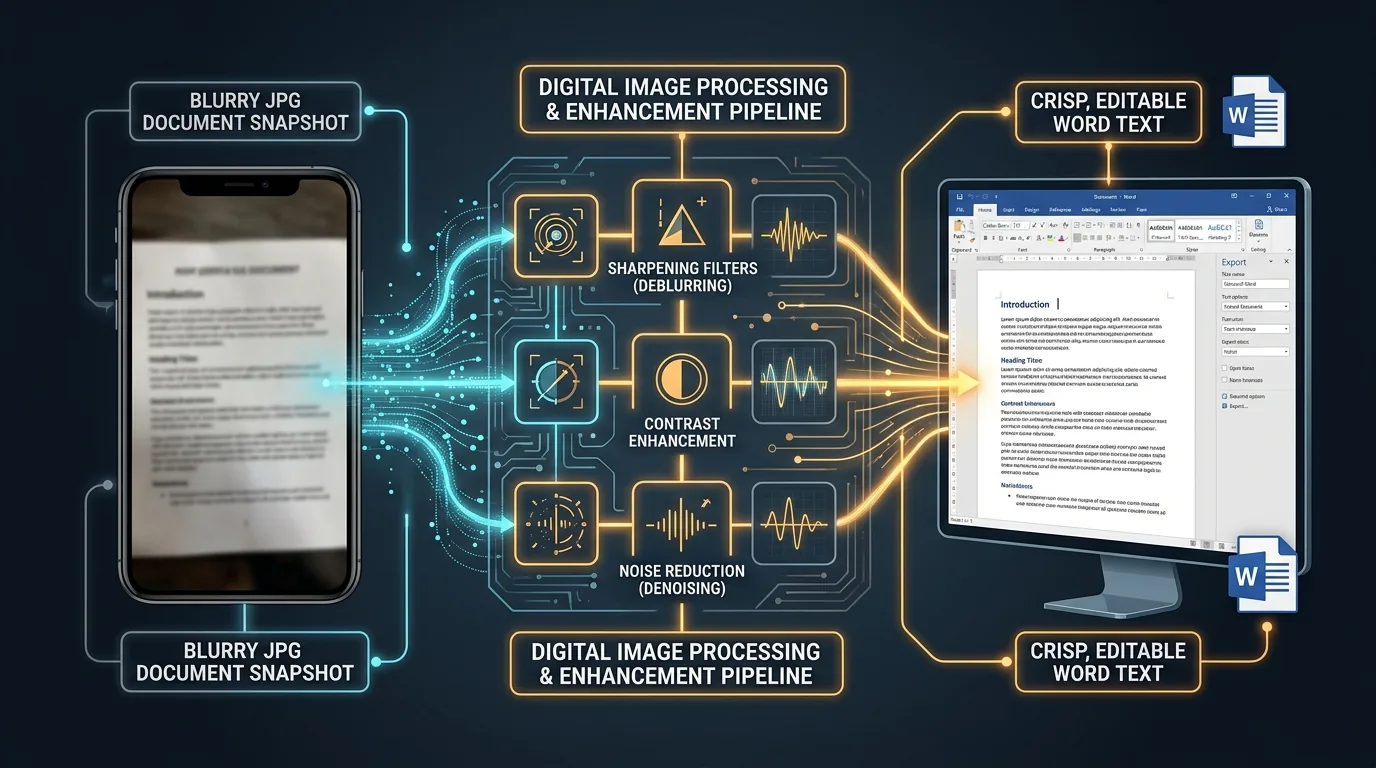
Not every document photo turns out perfectly sharp. Maybe the lighting was poor, or your hand shook slightly during the shot. A blurry JPG doesn't have to mean a failed conversion, though. This guide explains why blur causes OCR errors in the first place, and walks through practical techniques for improving image quality before you attempt text extraction.
Why Blurry Images Cause OCR Recognition Errors
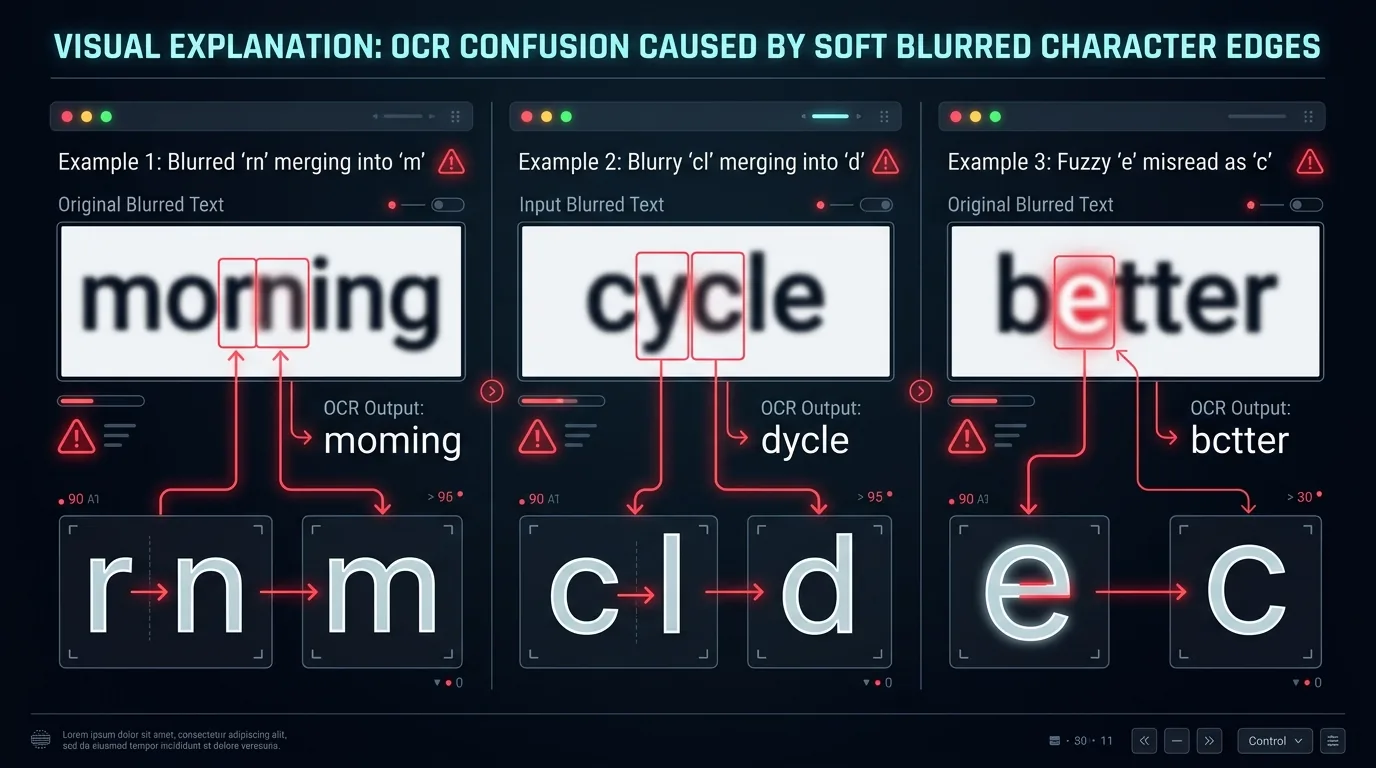
OCR software relies on sharp, well-defined edges to distinguish one character from another. Blur softens these edges, sometimes merging adjacent letters together into shapes the software simply cannot confidently identify.
This is why a blurry "rn" sometimes gets misread as "m," or a fuzzy "cl" becomes "d." The characters look visually similar once their edges blend together, and the recognition algorithm has to make its best guess.
How to Tell Whether a JPG Is Clear Enough for Text Extraction
Zoom into your image at 100 percent or higher and examine individual letters closely. If you can clearly distinguish each character's shape without straining, the image likely has enough clarity for reasonably accurate OCR.
If letters blend together or edges look soft and undefined even at close zoom, the image probably needs some enhancement before running it through any conversion tool, or a fresh photo entirely.
How Resolution and Pixel Density Affect OCR Results
Higher pixel density means more visual data per character, giving the software more information to work with when distinguishing similar shapes. Low-resolution images simply don't provide enough detail for reliable recognition.
| Issue | Effect on OCR |
|---|---|
| Low pixel density | Characters appear blocky, easily confused |
| Motion blur | Edges smear, letters merge |
| Poor focus | Overall softness reduces accuracy |
What Happens When Text Edges Are Soft or Distorted?
Soft edges essentially remove the crisp boundaries that OCR algorithms depend on for accurate character matching. The software might interpret a soft-edged "e" as a "c" or an "o," depending on exactly how the blur distorted the shape.
This problem compounds with smaller font sizes, since there's less overall pixel area to work with in the first place. Larger headings often survive blur reasonably well, while small body text suffers disproportionately.
How Contrast Can Improve Recognition of Faint Text
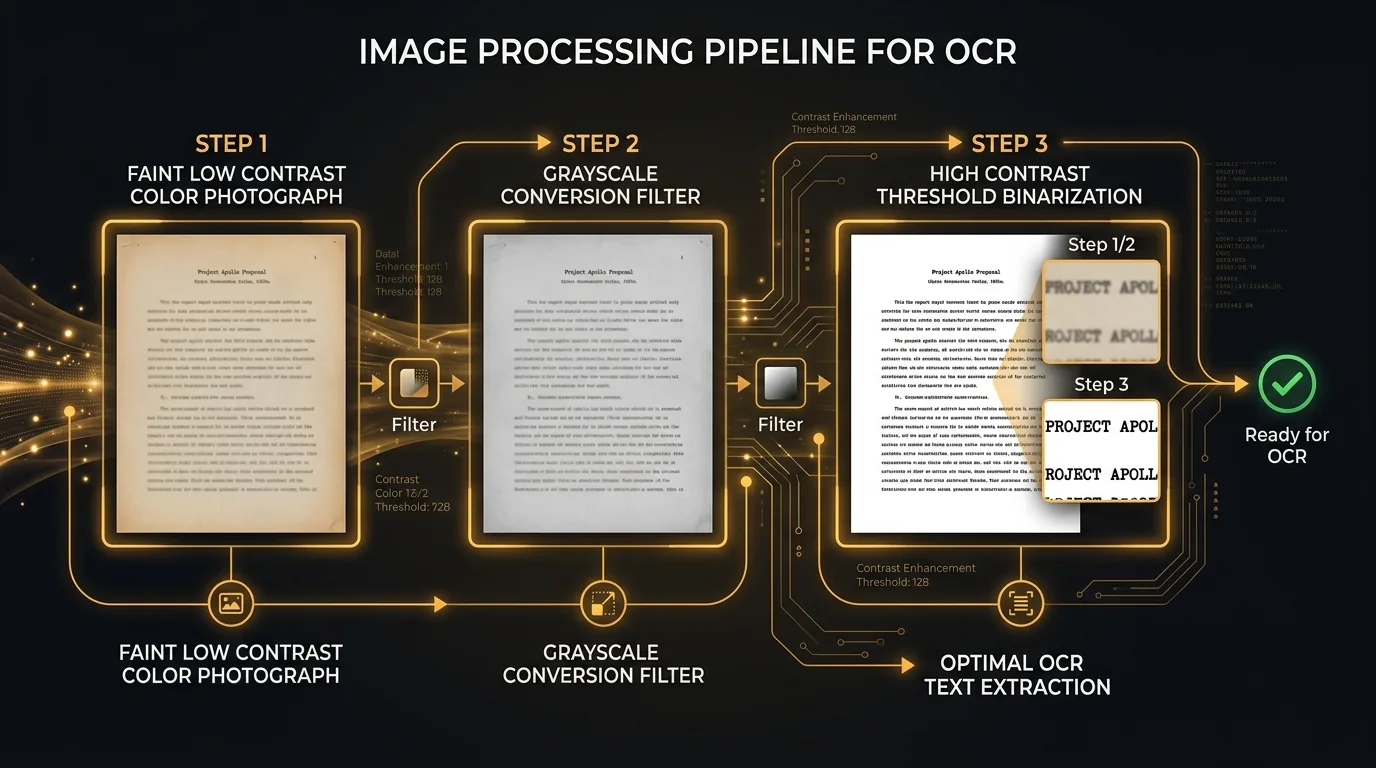
Increasing contrast between text and background makes character boundaries more distinct, even in images that aren't perfectly sharp. This is a relatively simple, effective enhancement technique available in most photo editing tools.
Converting a color image to grayscale first, then boosting contrast, often produces noticeably better OCR results than working with the original, unmodified color photo.
How to Straighten and Crop a Blurry Document Photo
Removing unnecessary background and straightening any tilt reduces the workload for the OCR engine, letting it focus purely on the actual text content without distraction from irrelevant visual noise.
Most photo editing apps include a simple crop and rotate tool. Spending thirty seconds on this step before conversion often meaningfully improves your final results, even without addressing the blur itself directly.
When Upscaling an Image Can Help and When It Cannot
Upscaling, or artificially increasing an image's pixel dimensions, can sometimes help borderline cases by giving the OCR software slightly more data to analyze during processing.
However, upscaling cannot recover detail that was never captured in the first place. A severely blurry photo will remain fundamentally blurry after upscaling; the software simply spreads the same limited information across more pixels.
How to Reduce Noise Before JPG-to-Word Conversion
Digital noise, those random speckled artifacts often visible in low-light photos, can confuse OCR software in ways similar to blur. Noise reduction filters, available in most editing apps, help smooth this out.
Apply noise reduction carefully, though. Overly aggressive settings can inadvertently soften text edges further, essentially trading one problem for another if you're not paying attention to the results.
What to Do When OCR Still Produces Incorrect Words
Even after enhancement, some errors may persist. Manually reviewing and correcting the converted text remains an essential final step, especially for documents where accuracy genuinely matters.
Focus your proofreading attention on frequently confused character pairs, like "1" and "l," or "5" and "S," since these ambiguous shapes cause the most persistent recognition errors even in reasonably clear images.
Conclusion: Improving a Blurry JPG Before Converting It to Word
A blurry JPG doesn't automatically doom your conversion attempt. Straightening, cropping, boosting contrast, and reducing noise can meaningfully improve OCR accuracy before you even start the actual text extraction. Combine these preprocessing steps with careful proofreading afterward, and even imperfect photos can yield usable, editable Word documents.