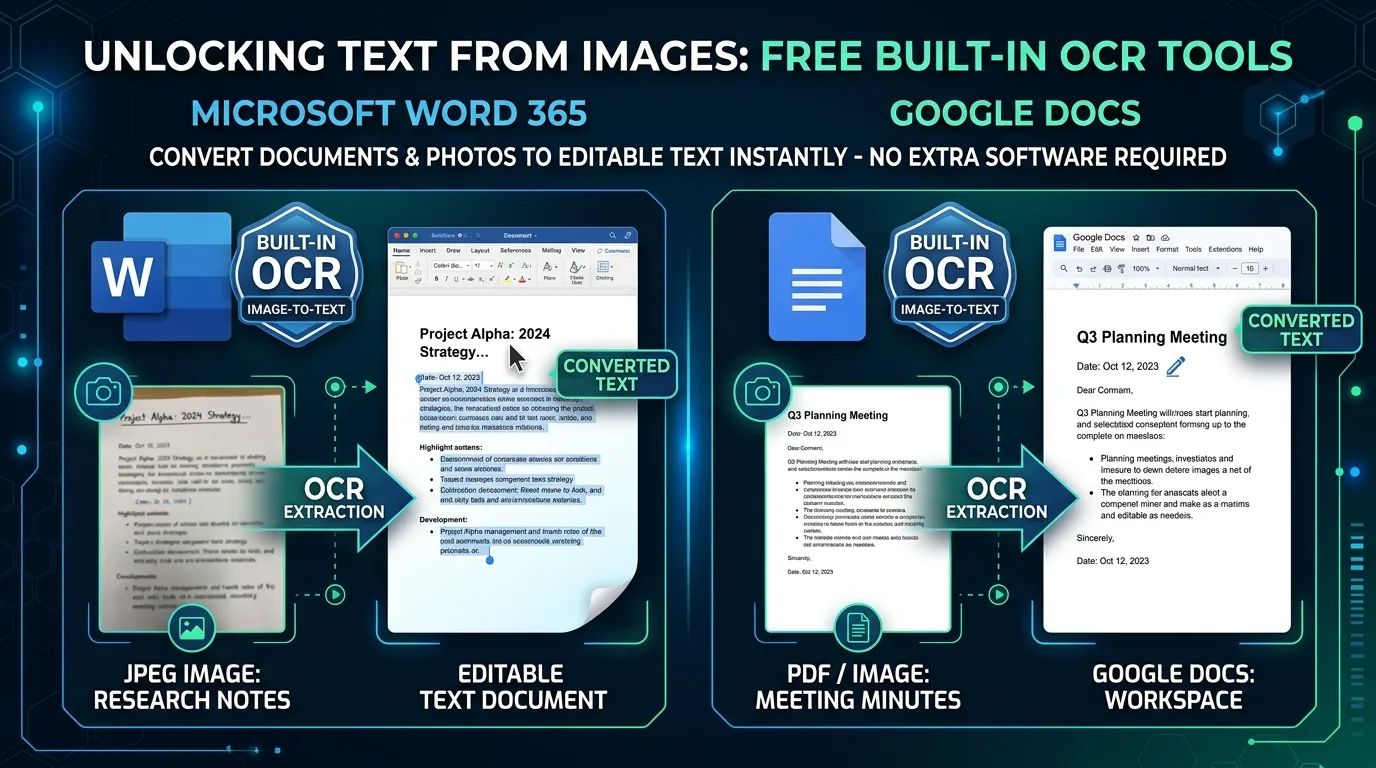
Before downloading yet another conversion app, consider this: the tools you already use every day might handle JPG to Word conversion just fine. Microsoft Word and Google Docs both include built-in OCR capabilities that many people never realize exist. This guide walks through exactly how to use these free, already-installed tools to extract editable text from an image.
Can Microsoft Word Extract Text From an Image?
Yes, though not always through an obvious, dedicated button. Modern versions of Word, especially those tied to a Microsoft 365 subscription, include OCR functionality accessible through the Insert menu and certain picture-editing options.
The feature works best with clear, printed text rather than handwriting or heavily stylized fonts. For straightforward documents, though, it can save you from downloading any separate, dedicated conversion software entirely.
How Built-In OCR Features Can Handle JPG Text
Built-in OCR generally handles standard printed documents reasonably well, similar in accuracy to many dedicated converter tools. The underlying recognition technology often comes from the same broader category of algorithms used across the industry.
Where built-in tools sometimes fall short is with complex layouts or specialized document types. Dedicated OCR software occasionally offers more granular control over recognition settings that basic built-in features simply don't expose to users.
How to Insert a JPG Into Word Before Extracting Its Text
Start by opening a new Word document, then use Insert followed by Pictures to bring your JPG file directly into the document. From there, look for OCR or text-extraction options, depending on your specific Word version.
Some versions require right-clicking the inserted image and selecting a recognition option, while others process images automatically once inserted, depending on your subscription tier and installed updates.
When OneDrive and Microsoft 365 Tools Can Help
OneDrive's mobile app includes a document scanning feature with built-in OCR, letting you photograph a document and receive searchable, partially editable text without any separate software installation.
This integrates smoothly with Word if you're already within the Microsoft 365 ecosystem, since files saved through OneDrive sync automatically and remain accessible across your devices for further editing.
How Google Docs Can Turn an Image Into Editable Text
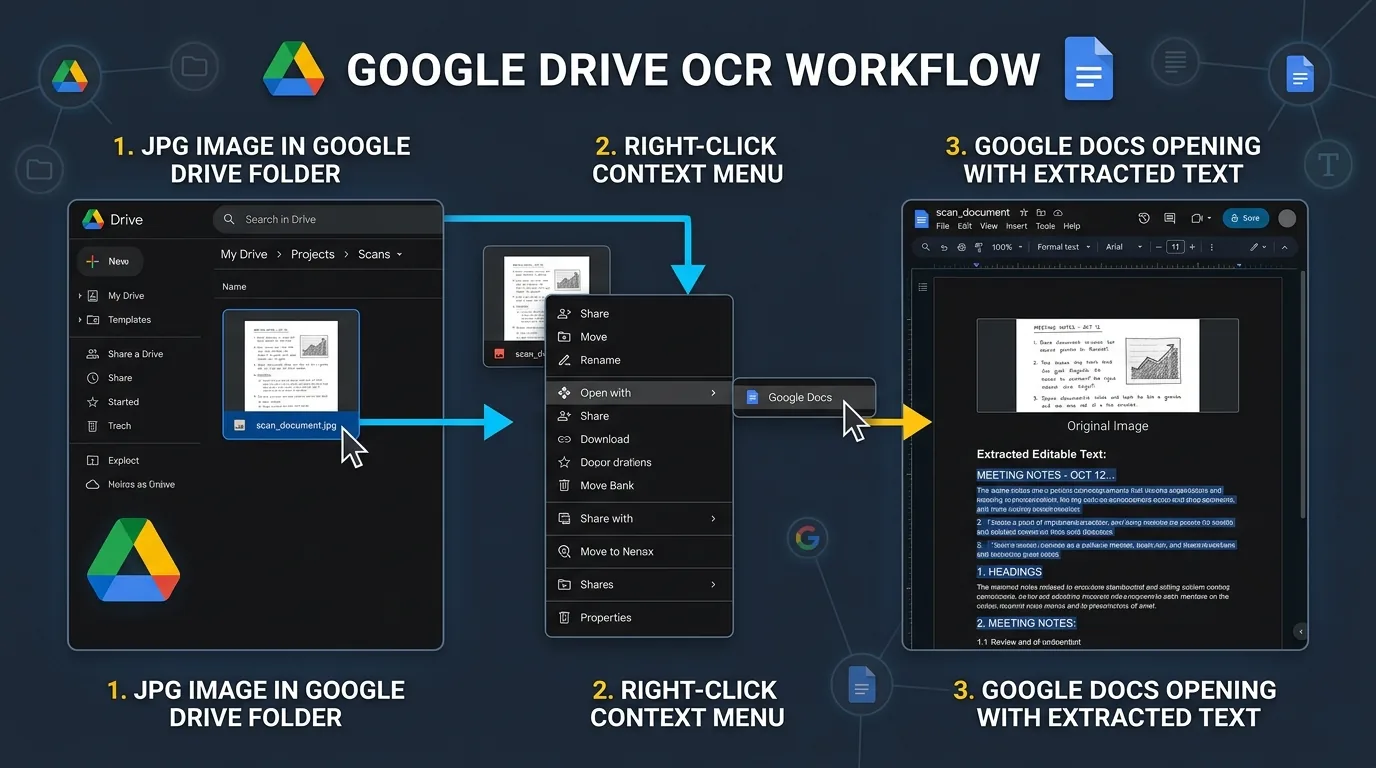
Google Docs offers a genuinely excellent free OCR option. Upload your JPG to Google Drive, right-click the file, and choose "Open with Google Docs." The platform automatically runs OCR and displays the extracted text below the original image.
This method works surprisingly well for a completely free tool, often rivaling paid alternatives for standard printed documents, though results vary somewhat depending on original image quality and complexity.
What Built-In Methods Can and Cannot Preserve
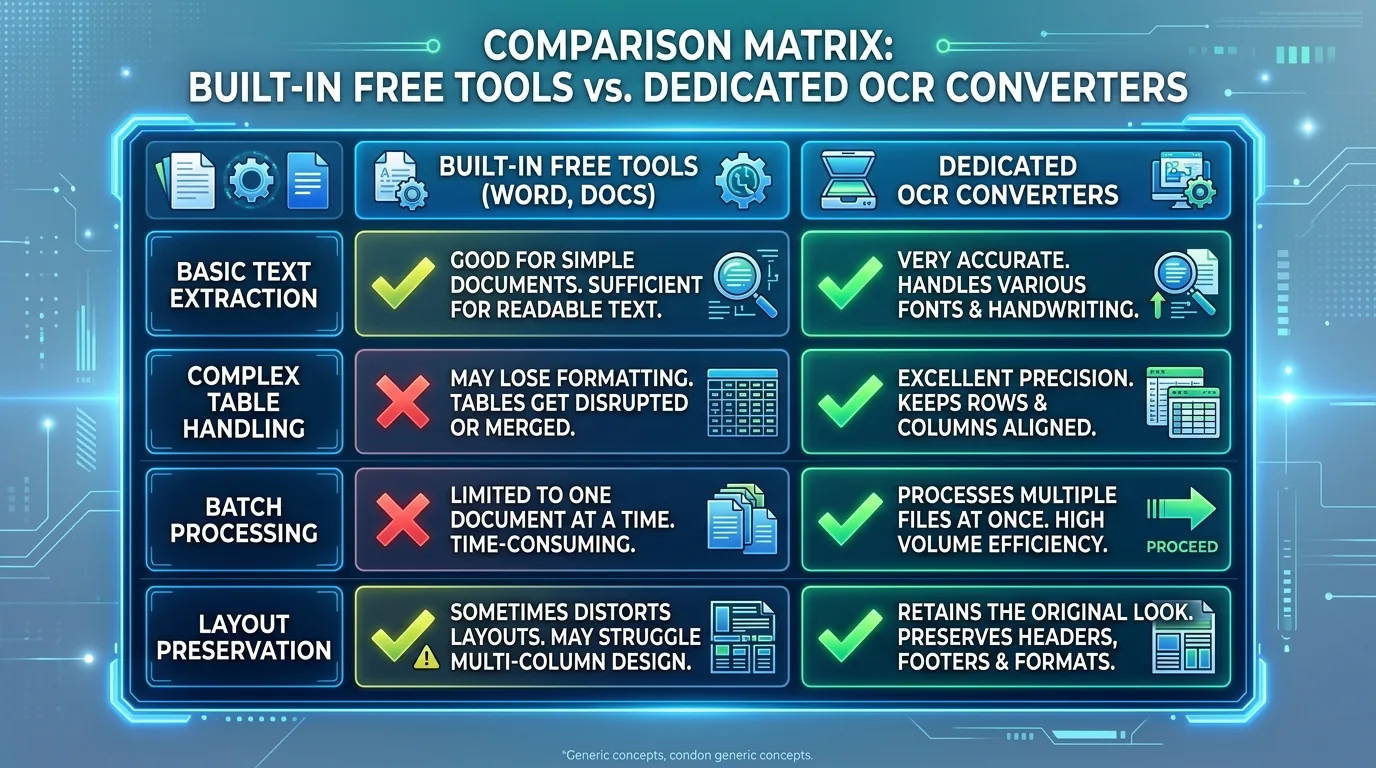
Built-in tools generally extract text accurately but often lose more formatting detail compared to specialized conversion software designed specifically around layout preservation as a core feature.
| Feature | Built-In Tools | Dedicated Converters |
|---|---|---|
| Basic text extraction | Good | Good |
| Complex table handling | Limited | Often better |
| Batch processing | Rarely available | Frequently available |
How to Choose Between Word, Google Docs, and Dedicated OCR
For occasional, simple conversions, built-in tools handle the job perfectly well without any additional cost or software installation required. Google Docs particularly shines for quick, one-off text extraction needs.
For frequent, high-volume, or highly formatted document conversion, dedicated OCR software often justifies its cost through better accuracy, batch processing capabilities, and more granular control over the entire conversion process.
Why Some JPGs Produce Better Results Than Others
Regardless of which tool you choose, image quality remains the single biggest factor influencing accuracy. Sharp, well-lit, properly oriented photos consistently outperform blurry or poorly framed ones across every OCR platform tested.
Built-in tools are no exception to this rule. Even Google's impressively capable OCR engine struggles noticeably when working from a genuinely poor-quality source image.
How to Edit and Proofread Text After Built-In OCR
Once extraction finishes, review the output carefully before relying on it for anything important. Both Word and Google Docs occasionally introduce small errors, particularly around unusual punctuation or specialized terminology.
Use your word processor's built-in spell-check as a first pass, then manually review numbers, names, and technical terms separately, since spell-check alone won't catch every type of OCR-related error.
Conclusion: When You Can Convert JPG Text Without a Dedicated Converter
For most everyday needs, you genuinely don't need a specialized JPG to Word converter. Built-in tools within Word and Google Docs handle standard printed documents competently and completely free of charge. Save dedicated software for complex, high-volume, or heavily formatted conversion tasks where the extra investment clearly pays off.